How to build a microsite in Flex
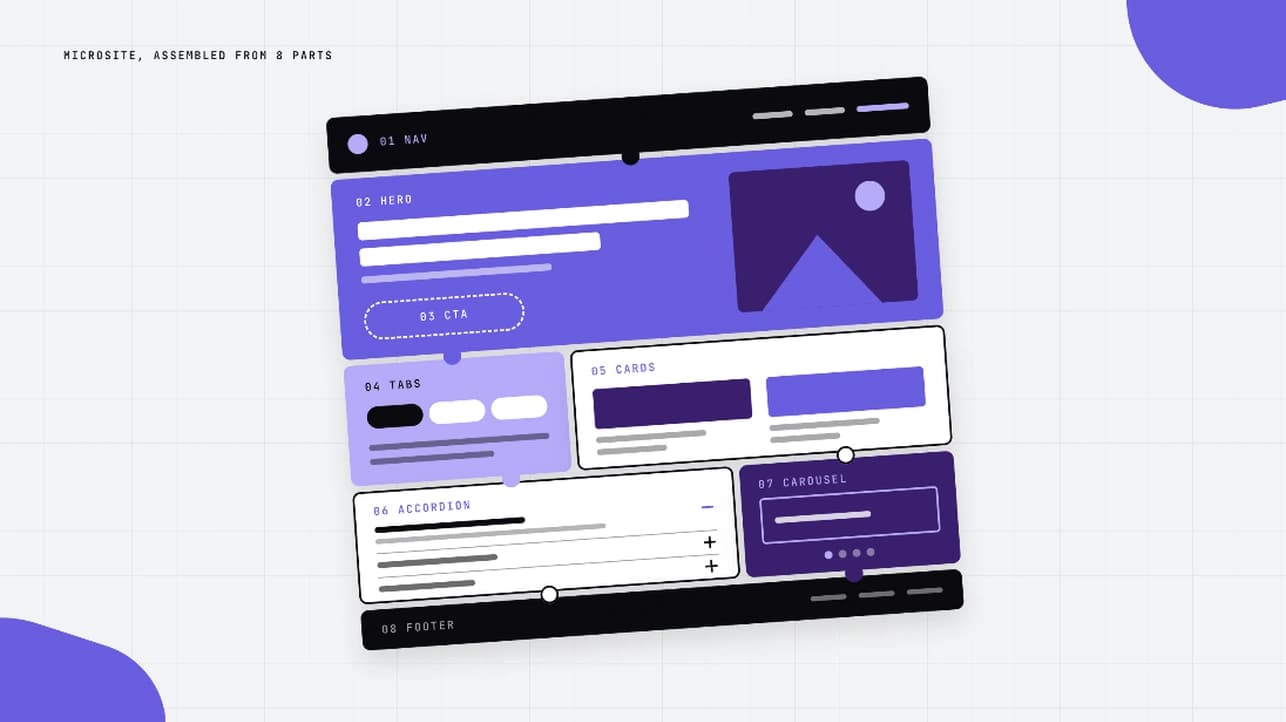
Build a microsite in Flex from library components. Pick a goal, choose a structure, and launch a campaign, event, or report site with no dev queue.
BY Mary Mattingly
October 30th 2026 – 10 minutes
GUIDES & TOOLS


How to build a microsite in Flex
A landing page makes one ask. A microsite makes the whole case: a launch, an event, a report, or a hub, each with its own structure and its own call to action. With Flex, you don't need a dev queue or a blank canvas to build one. This guide walks through picking a goal, choosing a structure, combining components from the library, and knowing when to reach for the SDK.
What is an interactive microsite?
An interactive microsite is a small, focused website built for one purpose, such as launching a product, running an event, or presenting a report. It has its own structure and call to action, and uses interactive elements like tabs, animations, and scroll effects. In Flex, you build one by assembling reusable components rather than coding from scratch.
Start with your goal
Microsites do four jobs, and each job has its own shape. Pick yours before you open the Flex canvas, because it decides the structure, the components, and how you deliver the thing.
Launch or promote something. This goal is one argument with one call to action, so every section pushes the visitor the same way. A product launch, a campaign, or an account-based push all fit: open with the problem, show the features, prove it with stats, then close on a CTA. Flex's product microsite template follows exactly that arc, which makes it the fastest place to start. If you're selling expertise instead of a product, the professional services microsite template runs the same arc with different proof: a methodology toggle and animated benchmark bars do the persuading.
Run an event. An event microsite has to cover the basics: agenda, speakers, sponsors, and a way to register or ask a question. Covering them usually takes four to six pages: a home page, speakers, a day-by-day agenda, solutions, and a community or content page. With that many pages, visitors need a clear way in, so numbered navigation cards point them to the right one. Tiered sponsor logos then give partners the placement they paid for. If your event needs less, Flex's conference landing page template folds keynote speakers, session tracks, an agenda grid, and speaker and sponsor carousels into one scroll, with sticky and jump navigation guiding visitors to a registration CTA.
Turn a report or PDF into a microsite. Start with the static report and give it what a PDF can't: a chapter menu, a summary up top, and charts that build as readers scroll. Keep it to one long page with a sticky chapter menu rather than a pile of pages, so readers can jump between chapters without losing their place. If you're starting from the PDF itself, our interactive PDF guide covers the document, and this guide covers the site around it.
Build a hub. A hub is one home page that routes visitors to sub-pages by audience or situation. Picture an illustrated scene with labeled hotspots, or a grid of cards: each choice opens its own page, and every page links back to the start so visitors can pick another path.
Map your goal to a structure
Your goal also picks your structure. Use one long scroll when the microsite makes a single argument, and use multiple pages when different visitors need different paths. Structure then decides how you deliver the microsite, so settle both before you build. The Flex delivery methods guide compares standalone, iFrame, Inline, and Server-Side Rendering.
Goal | Structure | Delivery |
|---|---|---|
Launch or promote | One long scroll with a sticky nav or jump links | Standalone link or embed |
Run an event | Multi-page, four to six pages | Vanity domain |
Report or PDF | One long scroll with a sticky chapter menu | Standalone link or embed |
Hub | Multi-page: a hub plus spokes | Vanity domain |
One multi-page experience gets one embed code. The pages inside it don't each get their own, so if you need every page on your own domain, use a vanity domain instead of embedding.
Sketch the page list first. If you chose multi-page, write down the pages your home page routes to before you touch a component, then set those pages up in Flex before you fill them.
Navigation is part of the structure. A sticky nav, an anchor menu, numbered nav cards, tabs inside a page, and a hotspot menu each suit a different shape. The next section shows components for most of them.
Browse components by purpose
The components library has 124 components, sorted into categories like Navigation, Hero, Data visualization, Timelines, Testimonials, Tabs, Cards, and CTAs. A microsite needs only a handful, so think in purposes rather than categories: what does this section of the page need to do for the visitor? Seven purposes cover most builds:
Navigate, from the Navigation and Menus categories.
Open, from Hero and Video.
Tell the story, from Carousels, Cards, and Galleries.
Prove, from Data visualization.
Explain, from Cards, Tabs, and Accordions.
Schedule, from calendar and timeline components.
Convert, from CTAs, Buttons, and Footers.
Each purpose is embedded below so you can try it live. Click through them before you plan your build.
Navigate. A microsite lives or dies on how easy it is to move around. The navigation menu with mobile optimization stays fixed as visitors scroll and collapses into a hamburger menu on small screens. A small SDK script restores the desktop menu when the screen widens again, so the nav holds up at every breakpoint. For a long scroll, the anchor navigation menu is another place to start: it pins section labels to the side of the page, highlights the one the visitor is reading, and smooth-scrolls to any section on a click.
Open. Your hero does the work of a landing page in one screen, and a microsite hero can do more than sit there. The scroll-controlled video scrubs forward and backward as the reader scrolls, so the visitor sets the pace. It suits a product reveal on a launch microsite or a location spotlight at the top of an event. If you'd rather present several offerings at a glance, the hover cards hero expands each card on hover to reveal an image and details.
Tell the story. A microsite has room for the why behind it. The fundraising campaign story carousel moves through three full-bleed panels, each with a chapter label, a heading, and a few lines of copy, and arrow controls step the reader forward. Use it for an organizer's story, a campaign's case or a session highlight. For a longer speaker lineup, try the meet our team card.
Prove. Numbers earn trust faster than adjectives. The animated stats card reveals each figure as the reader scrolls, so the data lands one point at a time instead of all at once. The radial stat dial is another place to start.
Explain. Most microsites spend a good share of their length explaining something: a problem, a set of features, an audience. The interactive cards component gives you a hoverable grid for those callouts. The tabbed content explorer is another place to start.
Schedule. Events run on dates, so give visitors a way to browse them. The event calendar is a month view where dots mark the days with something scheduled, and selecting a date opens each event's time, title, and location. It uses the SDK. If you need a sequence instead of a calendar, the interactive timeline puts era tabs on top and dated cards below.
Convert. End every page with one clear ask. The animated ticket button is a CTA styled like a perforated event ticket: on hover, its gradient shifts and a set of chevrons animates forward to prompt the click. It's built for event promos, but it works anywhere a playful CTA fits. For a quieter ask, the animated demo button has a hover animation built in, a click-me cue that doesn't shout. The animated footer is another place to start.
Combine them: a recipe for each goal
The components matter less than the order you stack them in. Here's a starting stack for each goal from earlier.
Launch or promote: a scroll-controlled video hero, problem cards, feature cards or tabs, a stats card, persona cards, a quote carousel, demo button.
Run an event: navigation menu, a scroll-controlled video hero for the location, a story carousel for the organizer's case, an event calendar for the agenda, speaker cards, a ticket button or countdown timer.
Report or PDF: hero, anchor navigation as the chapter menu, an on view progress bar to show how far readers have come, charts and stats, a download button.
Hub: a grid of interactive cards as the home page, or an interactive hotspot scene for a small hub (the component ships with three hotspots), then a consistent nav and footer on every sub-page.
Start from a template or a blank canvas
There are two ways in. Start from a template when your goal matches one: every template page has a Use this template button, and the launch or promote goal has two close matches, the product microsite and professional services templates. You get a finished structure to edit instead of a blank page to fill. Otherwise, copy components onto a blank canvas one at a time, using the stack for your goal as your order. Our case study guide walks through the copy and paste steps.
Some components arrive with more modules than you need, so treat big ones as kits. Import the whole thing, then delete what your page doesn't use. You aren't locked into the full component just because that's how it arrived.
Make it yours with the SDK
Components handle how a microsite looks. Five things sit beyond them: forms, live data, search and filters, deep links, and gating. The Flex SDK, which lets you add your own JavaScript to a published experience, covers some of these. The rest come with limits worth knowing before you plan your build.
Forms and data capture. Flex has no native form, so embed a HubSpot, Marketo, or Google form on the page. A custom embed that writes to Google Sheets is possible, but collecting personal data that way raises GDPR and PII questions your marketing platform already answers.
Live data. Some content has to stay current, like a schedule or a leaderboard. Hand-built grids for that are heavy and slow the whole page, so feed the content from data through the SDK instead. The event calendar and countdown timer are both built with it, which makes them a good place to start.
Search and filters. Customers have built article search with the SDK. The lesson worth borrowing: drive search and filters from the same component data, so there's one list to maintain instead of two that drift apart.
Deep links. Every element has an ID that works as an anchor. Copy it from the Inspector, add # and the ID to the end of your published URL, and the link scrolls straight to that section. Our guide to creating a deep link in Flex has the steps. The element has to appear at every breakpoint, or the link breaks on the screens where it's missing. If your mobile layout uses different content, drop a shape with 0% fill onto every breakpoint, position it where you want the scroll to land, and use its ID as the anchor. To jump on a click instead, use a Scroll to interaction.
Gating. An embedded form asks visitors for an email, but it doesn't create a true gate. Hidden pages are still reachable by direct link, so if the content is confidential, don't rely on a form to protect it.
One thing to know before you start: SDK code only runs on a published experience, so test it on the published page, not in the editor.
Best practices
These tips are specific to microsites. Basic responsive and accessibility advice carries over from our landing page guide, so check that one rather than repeating it here.
Keep heavy builds off the canvas. Hiding a hand-built calendar or grid doesn't stop it from slowing the page, so swap it for an embed or a data-driven version. Test the published page on the site that hosts it, not just the preview. The Flex performance guide covers more fixes.
Check every breakpoint. Sticky navigation turns into a hamburger menu on smaller screens, so test the menu and your anchor links at each size.
Decide on indexing deliberately. A public campaign microsite needs its SEO settings filled in. A sales-enablement page may not belong in search, so turn its indexing off. Fewer, well-built microsites beat a pile of orphans nobody maintains.
Repeat the same nav, footer, and card styles on every page. Build the nav and footer once on the first page and carry them across instead of rebuilding them page by page. Consistency is what makes a multi-page build feel like one site.
Plan your tracking early. Flex has no native heatmap or scroll depth tool, so those need third-party scripts. Standalone and iFrame builds can set up GA4 automatically once it's configured in your Ceros account, while Inline and Server-Side Rendering need GA4 or GTM set up on the host page. Decide what you want to measure before launch, not after.
FAQs
Ready to build your own? Start a free trial and pull these components straight into a canvas.