How to build an interactive quiz in Flex
Build a scored, pass/fail, or recommendation quiz in Flex in just minutes. Set up the canvas, add the SDK script, and send every visitor to the right results page
BY Lydia Burns
October 12th 2026 – 7 minutes
GUIDES & TOOLS
How to build an interactive quiz in Flex
Most quizzes fall apart at the last click. You spend an afternoon on clever questions, then the results button sends everyone to the same page and your quiz turns into a very long link. The fix is smaller than you'd think: Flex's built-in Go to Page interaction can't read a score, so a short script does the deciding. Here's how to build the quiz, and how to figure out which kind you need.
What is an interactive quiz?
An interactive quiz is a web experience that asks a visitor a series of questions and responds based on their answers. It can score them, qualify them, or recommend an outcome, and it ends on a results page matched to what they chose. Marketers use quizzes to turn readers into participants and point each visitor toward what fits.
Good news: you already know most of what goes into a quiz in Flex. It's clickable answer objects, a button, and a page for each outcome. The only new part is a short script that reads the answers and picks where each visitor lands.
Pick the quiz you're building
The three common quizzes share one build, but each one asks the script to decide something different. You'll need to choose before you open the canvas.
A scored quiz counts correct answers and shows a total. It's the right fit for knowledge checks, trivia, and onboarding tests. The multiple-choice quiz guide in Educate walks through this one.
A pass/fail quiz counts correct answers against a passing score, then sends the visitor to a "Congratulations" page or a "Try again" page. The conditional page navigation guide covers it.
An outcomes quiz has no wrong answers. Every answer carries a point value, and the total decides which result the visitor gets, like which product tier fits their team. This is the version with the most marketing upside, and the conditional results quiz guide shows how it works.
Build the canvas first
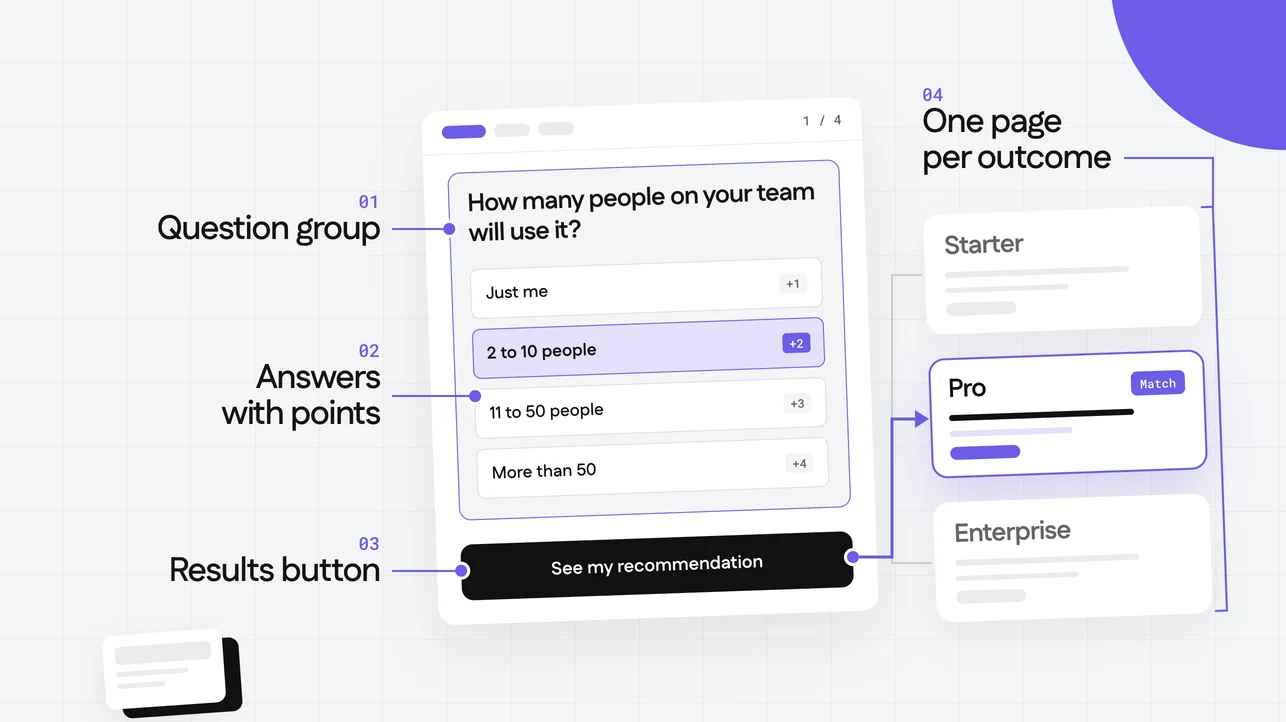
Everything the script needs lives on the canvas, so build that first and leave the code for later. We'll use a "Which product is right for you?" quiz (sometimes called a product selection quiz) with four questions and three tiers as the example.
Lay out your questions. Build each question with a clickable object for every answer choice.
Group the questions and name the group. Give the group the
quizlocator in the SDK Locators section of the Inspector Panel.Name every answer. Give each answer object the
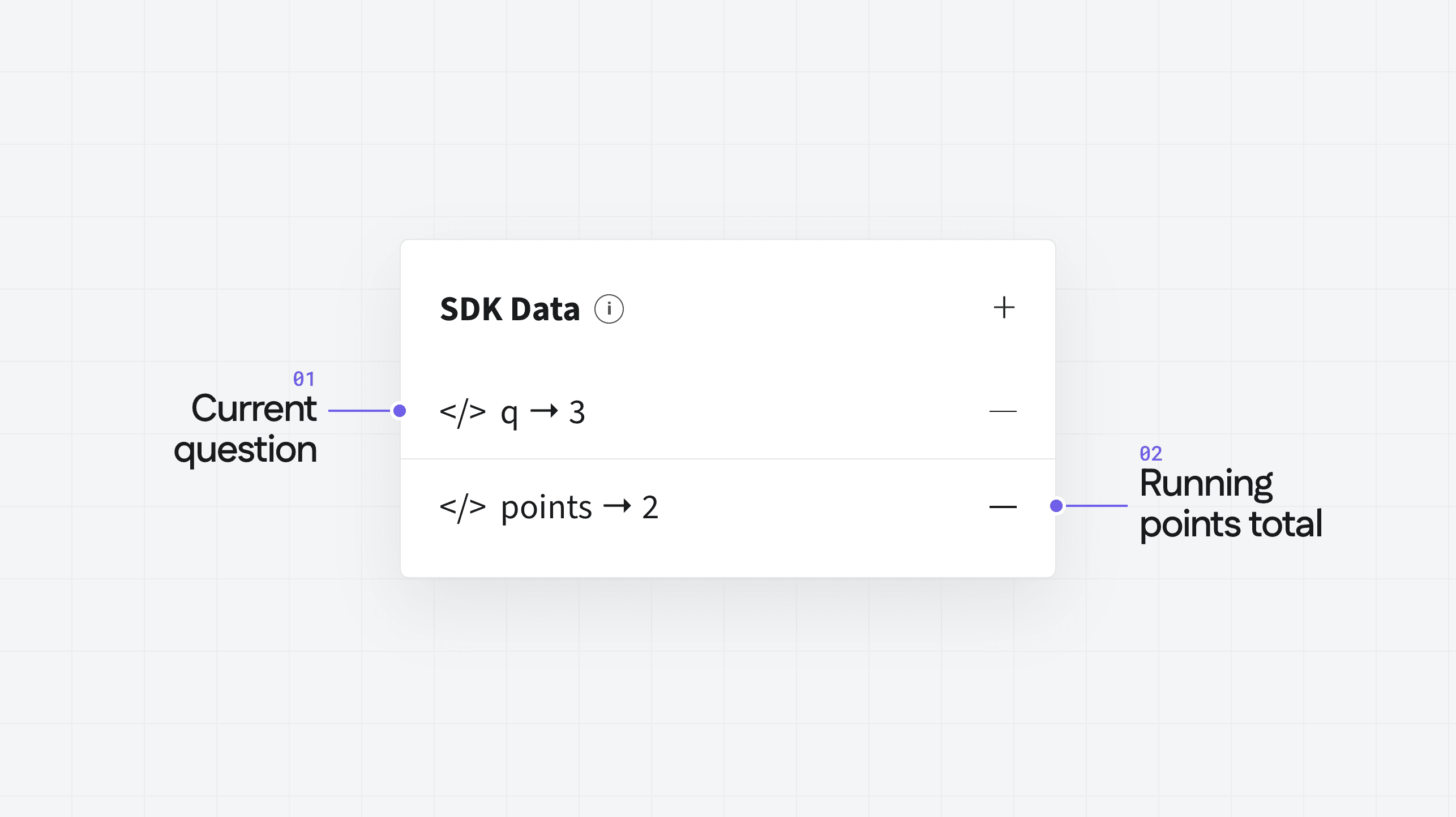
answerlocator.Give each answer a score. In the SDK Data section, add the key
pointswith the value that answer is worth, such as 0, 1, 2, or 3. For a pass/fail quiz, add acorrectkey set totrueon the right answers instead.Add a results button. Something like "See my recommendation," with the
results-buttonlocator.Create a results page for each outcome. Starter, Pro, and Enterprise, in this example.
Write down each results page's slug. The script navigates by slug. Run
experience.pages.list()in the browser console on the published experience to see them all.
Because each answer carries its own points, rebalancing a question later is a design change, not a script change. Future you will be grateful.
When Go to Page is enough
Not every quiz needs a script, and if yours doesn't, skip it. If your quiz walks visitors through questions in order, or every button goes to the same next page, use the built-in Go to Page interaction. It's faster to set up, anyone on your team can edit it, and there's nothing to maintain.
Reach for the SDK when the destination depends on the answers. A Go to Page interaction fires the same way every time, so it can't look at a score first. A script can.
Add the script that decides
Paste the SDK script into Experience Settings > Custom HTML > Body HTML, set your thresholds and slugs, save, then publish and preview in a new browser tab. The full, copy-ready scripts live in the Educate guides above, so there's no need to reproduce them here. What matters is the decision at the end:
if (total >= ENTERPRISE_MINIMUM) {
experience.pages.goTo('enterprise')
} else if (total >= PRO_MINIMUM) {
experience.pages.goTo('pro')
} else {
experience.pages.goTo('starter')
}
While your visitor answers, the script quietly adds up points in the background. Nothing gets decided until they click the results button, and that timing is the whole trick. The script checks the highest minimum first, so the first true branch wins and every total lands in exactly one tier.
Adding a fourth tier means one more constant and one more branch, still checked from highest to lowest. If clicking the results button does nothing, check your slugs and the browser console first. An unknown slug is a warned no-op, not an error.
Outcomes with no order
Points work when your outcomes are ranked, like small to large. They fall short when the outcomes are just different, like "Which Flex template fits your team?"
For those, swap points for votes. Give each answer an SDK Data entry naming the outcome it supports, count the clicks per outcome as the visitor goes, and send them to the outcome with the most votes. The canvas build stays the same.
What to plan around
A few limits are worth knowing up front, so nothing surprises you after launch.
Scores live in the browser. The running total and the answered flags reset when the page reloads, so a refreshed quiz starts over.
Delivery changes the setup. The steps above assume you're publishing the experience standalone or in an iframe, where Ceros runs your Custom HTML for you. With Flex Inline or server-side rendering, the script has to live on your own page, and it needs to reconnect on each page change. Plan time for that if your quiz sits inside a larger site. The Educate guide on SDK scripts in Flex Inline and server-side rendering has the details.
Best practices
Use Fully Responsive mode. Plenty of people will take your quiz on their phone. Fully Responsive mode keeps your answer buttons easy to tap.
Test every outcome, not just one. Click through the quiz once per results page and confirm each one is reachable. Check the edge totals especially, like the exact minimum for a tier.
Preview in a new browser tab. The SDK script runs in the published experience, so check your work there rather than in the editor.
Keep point values on the answers. If you ever rebalance the quiz, you'll change a number in the SDK Data section instead of rewriting logic.
Bonus: prompts for building from scratch
Flex AI can speed up the layout and copy, and it can draft the SDK script too. Ask for a result card that updates based on the visitor's answers, and Flex AI writes the code and asks for your approval before adding it. That version shows the result on the same page, so it skips the results pages and slugs above. Preview it in a new browser tab before you publish.
Laying out the questions:
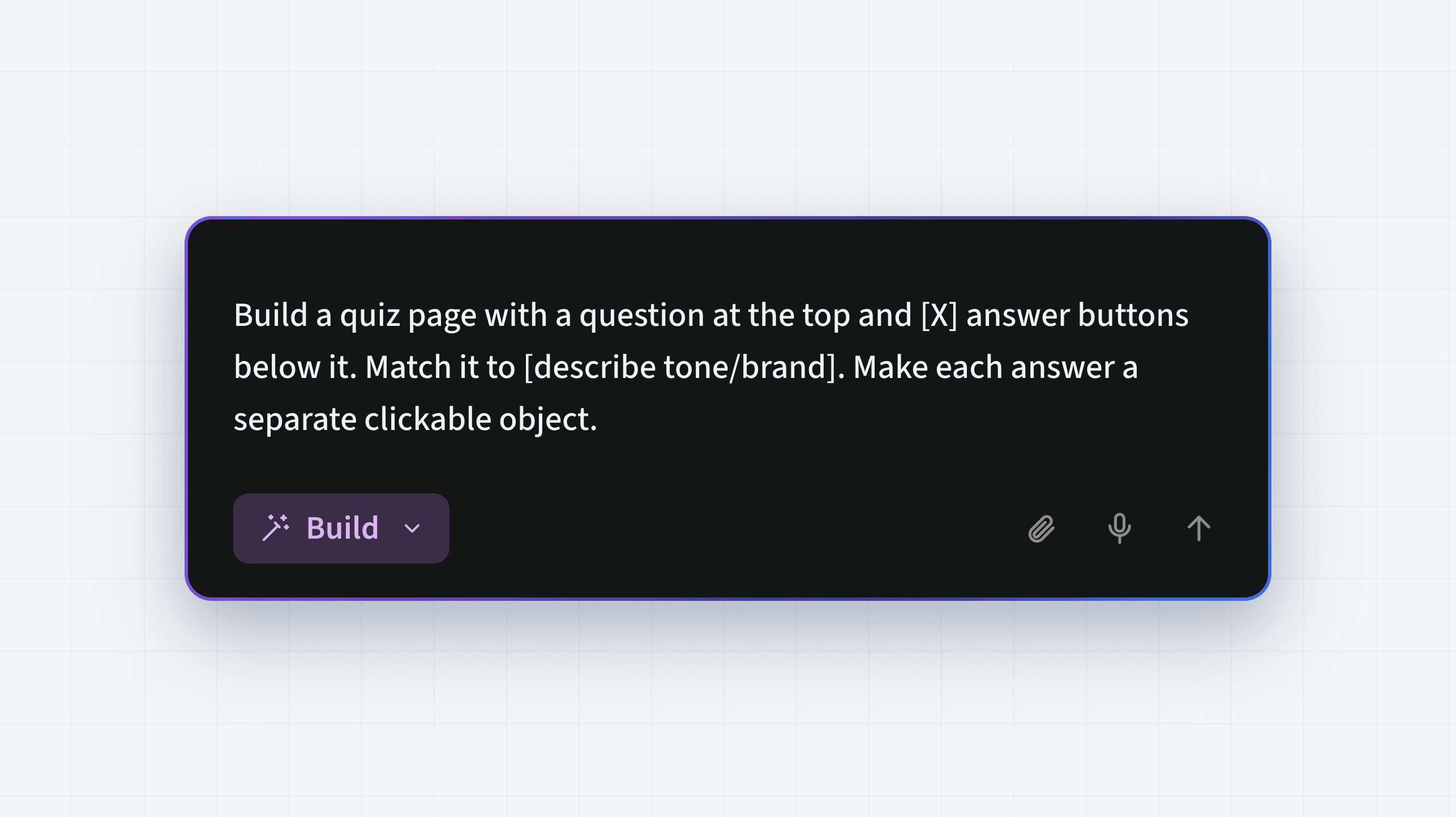
Build a quiz page with a question at the top and [X] answer buttons below it. Match it to [describe tone/brand]. Make each answer a separate clickable object.
Building a results page:
Create a results page for [outcome name] with a headline, one short paragraph about why it fits, and a button that links to [URL].
Drafting the questions:
Write [X] quiz questions with four answer choices each that help a visitor figure out which of [tier or option names] fits them. Make answers that suggest [bigger/heavier/more advanced] needs sound realistic, not obvious.
Specific inputs get you a usable result fast. Vague prompts are where the back-and-forth creeps in.
How to build an interactive quiz in Flex FAQs
There you have it!
Ready to turn your next static page into a quiz people actually finish? Start a free trial of Flex and build your first question.