How to generate interactive content with Flex AI: a prompt-by-prompt guide
Learn how to generate interactive content with Flex AI using 7 proven prompts — from blank canvas to a live, publishable experience in under an hour.
BY Lydia Burns
July 10th 2026 – 7 minutes
GUIDES & TOOLS
How to generate interactive content with Flex AI: a prompt-by-prompt guide
AI design tools are everywhere. The problem is that most of them generate the same thing: a static social tile, a flat image, maybe a slide deck you still have to manually format for an hour. Interactive content is a different challenge. Building a landing page that responds to user input, an infographic with clickable layers, or a microsite that guides visitors through a narrative — that requires more than a text-to-image model.
This guide is for marketers and content designers who want to actually build interactive experiences using AI, not just generate pretty pictures. Specifically, you'll see how Flex AI works: what prompts produce good results, what the workflow looks like from blank canvas to live URL, and where the limits are. By the end, you'll have seven prompt patterns you can copy and a repeatable process for getting from brief to published in under an hour.
When we say "interactive content," we mean experiences that users engage with rather than passively scroll: landing pages with animated transitions, data-led infographics with hover states, self-guided presentations, and microsites with branching paths. The kind of content that performs better and takes longer to build — until now.
What is Flex AI?
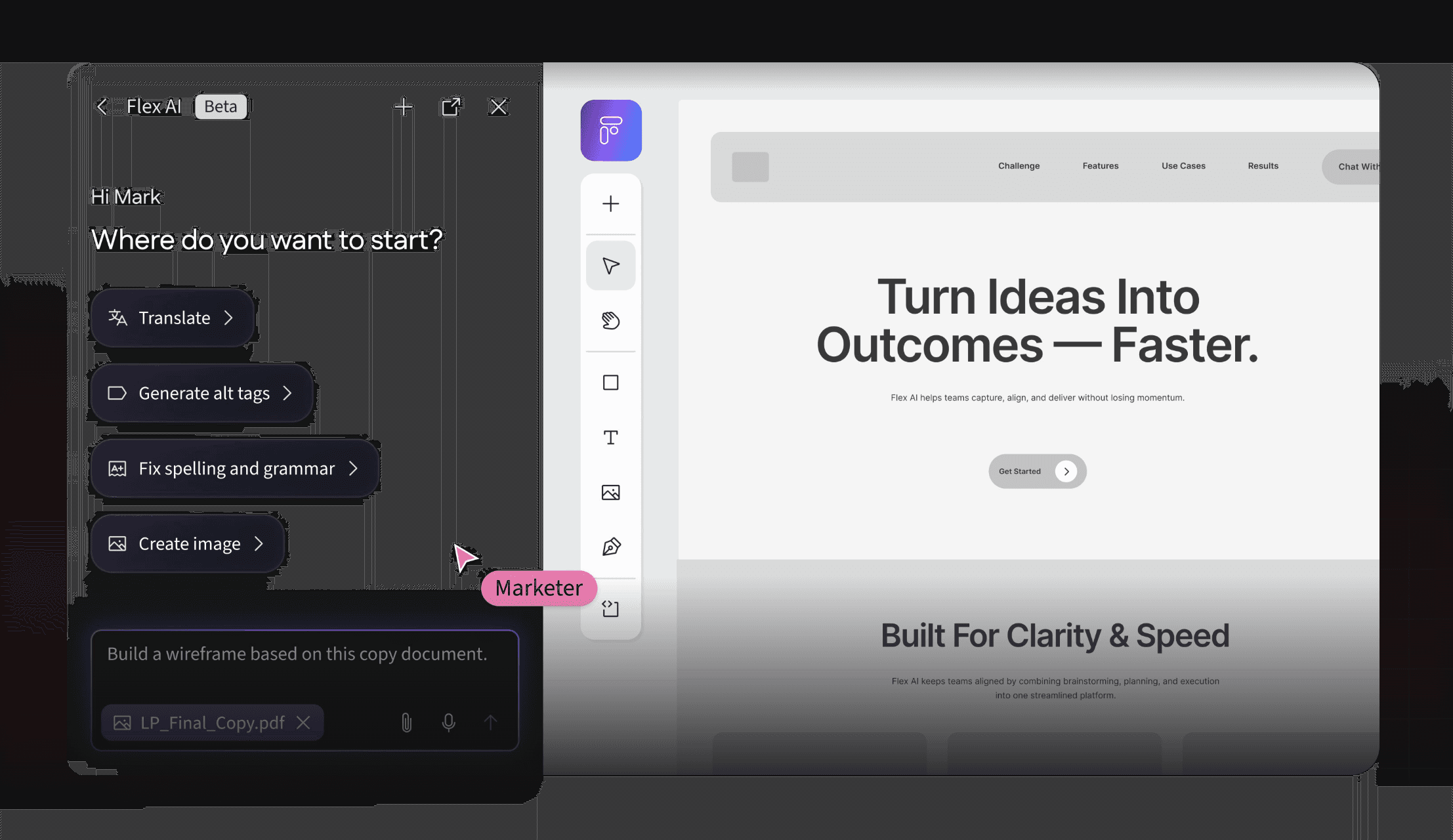
Flex AI is the AI design collaborator built into Flex, Ceros's interactive content design platform. It's canvas-aware — it reads your existing layout, structure, and content before it responds — so it can help you brainstorm, plan, build, and refine interactive experiences from a prompt, a screenshot, a URL, or content you paste in. Everything it produces stays fully editable directly on the Flex canvas.
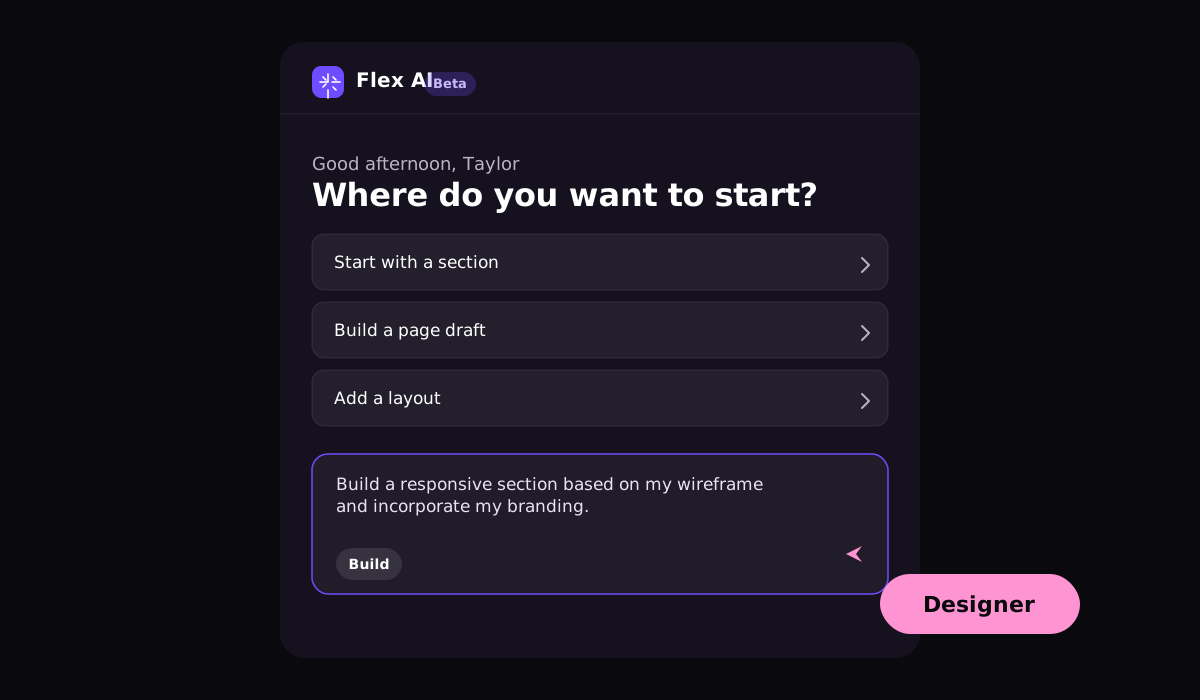
Unlike Canva Magic Design or Adobe Firefly, Flex AI doesn't hand you a flat export to download and rebuild elsewhere. Every output is a live, layered, animated Flex experience you can keep editing and publish as a URL or embeddable asset. Prompt a layout into existence, then go straight into the Flex editor to adjust spacing, swap brand colors, add a quiz module, or change a CTA — without leaving the platform, and without burning a new round of credits just to move an element.
How to generate interactive content with Flex AI: A prompt-by-prompt guide
For a full product overview, see the Flex AI product page and the Flex platform overview.
Before you prompt: 4 setup choices that matter
The quality of your Flex AI output depends less on how clever your prompt is and more on decisions you make before you type a single word.
1. Format. Decide what you are building before you start. Flex AI handles landing pages, infographics, microsites, and presentations, but each format has different structural logic. A landing page prompt should emphasize hero, value proposition, and CTA. An infographic prompt should reference data and visual hierarchy. Mixing formats in a single prompt produces muddled output. Pick one.
2. Audience. Flex AI adjusts tone, layout density, and visual complexity based on audience cues. "B2B exec" produces cleaner, more text-light output than "internal team," which can handle more density. "Consumer" tends toward bolder visual choices. Spell out your audience explicitly — do not assume Flex will infer it.
3. Brand inputs. If you have uploaded your logo, brand colors, and fonts to your Flex workspace before prompting, Flex AI will apply them automatically. This is the single biggest quality-of-life improvement available to you. Skipping this step means you will spend your first ten minutes of editing manually recoloring and refonting everything. Load your brand assets first.
4. Mode. Flex AI works across four modes — Inspire, Plan, Build, and Review — and the mode you're in shapes what it does with your prompt. Inspire is for exploring directions before you commit to anything. Plan turns a reference or brief into a section-by-section outline before you touch the canvas. Build is where it actually generates or edits content. Review has it critique what's already there and suggest fixes. If your output feels off, check whether you're in the mode you meant to be in before you re-prompt.
7 prompt patterns that work, with examples
This is the section to bookmark. Each pattern below includes the prompt structure, what Flex AI returns, and one or two tips for getting better output.
Pattern 1: "Build me a [format] for [audience] about [topic]"
This is your baseline. It is not fancy, but it works reliably and is the right starting point for any net-new piece.
Example prompt: "Build me a landing page for B2B marketing directors about the ROI of interactive content. Include a hero, three value proposition blocks, a stat section, and a CTA to request a demo."
What Flex returns: A multi-section landing page with your specified structure, populated with placeholder copy that matches the topic and tone. Animations are on by default. Brand assets apply if loaded.
Tips: The more specific you are about structure, the better the layout. Listing sections explicitly ("hero, three value prop blocks, stat section, CTA") consistently outperforms vague prompts like "a marketing landing page." If the first output is close but not quite right, don't start over — use Pattern 3 to refine individual sections.
Pattern 2: "Rebuild this [screenshot / webpage / brief] as an interactive [format]"
This is the most practical prompt in the set for content teams with existing assets — with one important caveat: Flex AI works from screenshots and public URLs, not from uploaded PDFs. If your source is a PDF, take screenshots of the relevant pages (or paste the text into your prompt or a Google Doc) rather than uploading the file directly — Flex AI isn't built to parse PDFs today, and a text-heavy PDF tends to produce weaker output anyway.
Example prompt: "Using these two screenshots of our product one-pager as reference, rebuild this content as an interactive microsite. Break it into sections by topic, add scroll animations, and make the feature list into a tabbed module. Pull the brand colors and fonts from the images."
What Flex returns: A structured microsite with the source content reorganized into interactive sections, styled to match the visual reference you provided.
Tips: Give Flex AI explicit instructions about how to restructure the content, not just what to convert it from. "Add scroll animations" and "make the feature list tabbed" produce more useful output than "make it interactive." Strong visual references do a lot of the work — a couple of clear screenshots will get you further than a wall of pasted text. For blog post conversions, check the interactive website examples for visual reference before prompting.
Pattern 3: "Make this section [more visual / more text-light / more data-led]"
Once you have a first draft, this pattern handles iterative refinement without regenerating the whole experience. Select a block or section and prompt against it specifically.
Example prompt: "Make this statistics section more data-led. Replace the paragraph text with large callout numbers and add a subtle animation to each stat as it enters the viewport."
What Flex returns: A revised version of that section only. The rest of the page stays intact.
Tips: Select the specific element in the Layers Panel or on the canvas before you prompt — it's the single biggest accuracy improvement available to you. Use Remix when you want to reimagine a layout without starting from scratch, and always scope your prompt to the smallest unit you actually want to change. Expect iteration; you rarely get it exactly right on the first pass.
Pattern 4: "Generate a layout option in [style: editorial / corporate / playful]"
When you have content but no strong visual direction, this pattern gives you a styled starting point.
Example prompt: "Generate an editorial-style layout for this thought leadership report. Use a magazine-style grid, high-contrast typography, and a limited color palette."
What Flex returns: A layout variant in the requested style, using your brand assets where available.
Tips: Three reliable style keywords to start from are "editorial" (magazine-style, high contrast), "corporate" (structured, conservative, data-forward), and "playful" (bold colors, asymmetric layouts, motion-forward). Combine them if you need to, but lead with one as the primary: "editorial with a playful accent" produces better results than "editorial and playful."
Pattern 5: "Add an interactive element to this section — [quiz / tabs / accordion / carousel]"
This pattern layers interactivity onto a layout that already exists. It's the fastest way to upgrade a static-feeling section without rebuilding it.
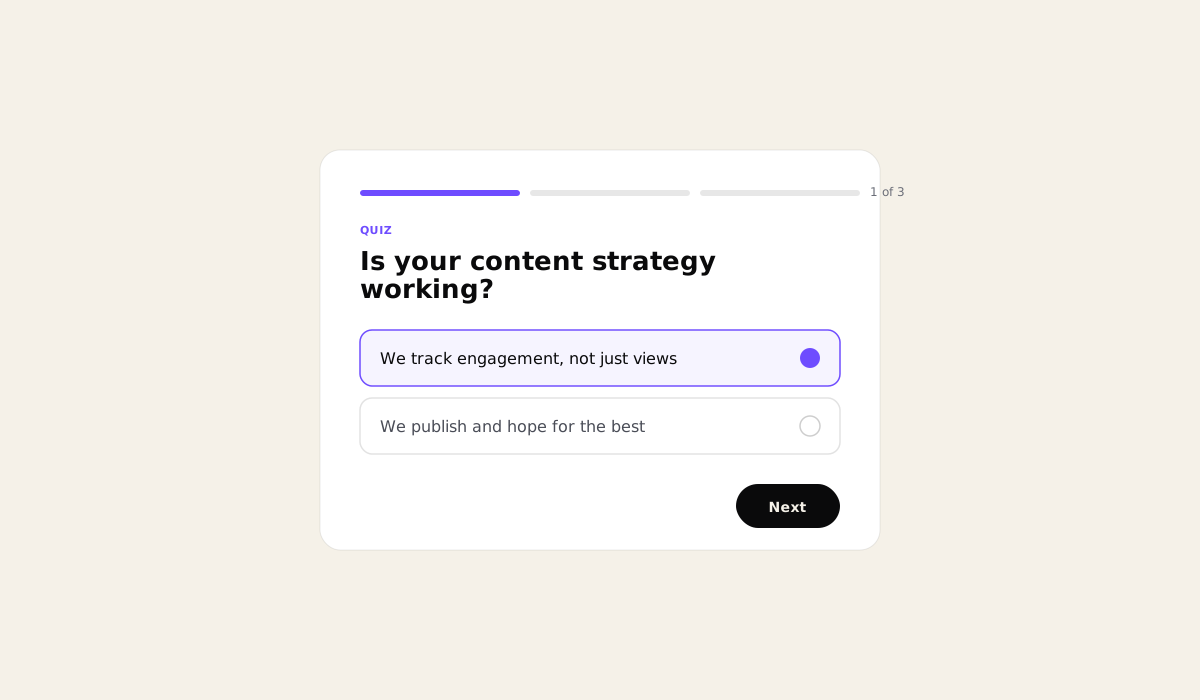
Example prompt: "Add a quiz to this 'Is your content strategy working?' section. Three questions, each with two answer choices, with a results state at the end that gives a score and a recommended next step."
What Flex returns: A quiz module embedded in the section, with the specified structure. The results logic is scaffolded — you'll need to review and adjust the copy, but the interaction architecture is built.
Tips: Name a pattern Flex AI already knows how to build — tabs, an accordion, a carousel, a toggle card grid, a stepper — rather than a generic ask like "make it more interactive." Note that true hotspot-style click zones on custom shapes are still an inconsistent area for Flex AI; if you need reliable click targets, a tab or accordion pattern will get you a steadier result today. See how to make a presentation interactive for more use-case examples of interactive layers.
Pattern 6: "Match the style of [reference URL / uploaded image]"
This pattern is useful when you have a visual reference — a competitor's microsite, a brand example, an internal design comp — and want Flex AI to apply that aesthetic to your content.
Example prompt: "Match the style of this uploaded screenshot. Use the same approximate grid density, typography weight, and muted color treatment. Apply it to my content."
What Flex returns: A layout that interprets the visual reference and applies the stylistic elements — not a copy of the reference, but a version with the same aesthetic applied to your content and brand assets.
Tips: Flex AI reads visual references for layout density, typographic weight, and color temperature. It does not reproduce trademarked design elements. The best references are ones where the style is clearly distinct — a highly minimal layout or a very data-dense one will produce cleaner output than a generic, midrange visual reference.
Pattern 7: "Variants: give me 3 versions of this hero with different [tones / CTAs]"
This pattern is built for testing. When you need multiple versions of a section for A/B testing or stakeholder review, you can generate variants in a single prompt.
Example prompt: "Give me 3 versions of this hero section: one with a bold, benefit-led headline and direct CTA; one with a softer, curiosity-driven headline and a softer CTA; one that leads with a customer stat and uses social proof as the primary hook."
What Flex returns: Three distinct hero variants, each with different copy tone and CTA framing, all maintaining the same layout structure and brand styling.
Tips: Anchor each variant to a specific strategic angle ("benefit-led," "curiosity-driven," "social proof") rather than asking for vague "different tones." This gives Flex AI a framework and produces meaningfully differentiated output rather than three versions that are basically the same.
Workflow: From prompt to live experience
Here is the full sequence, start to finish.
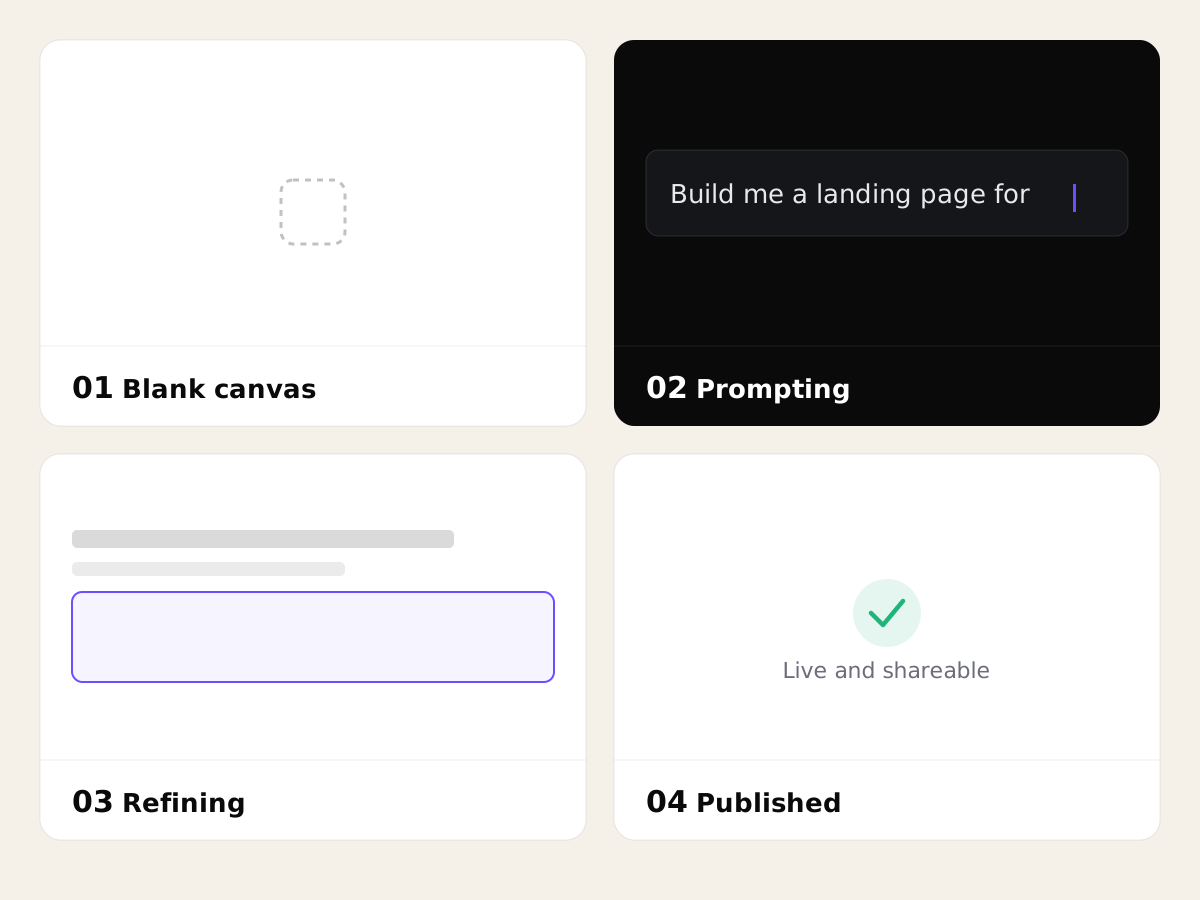
Step 1: Load your brand assets. Before opening a new canvas, confirm your logo, brand colors, and fonts are in your Flex workspace. This takes two minutes and saves ten.
Step 2: Choose your format, mode, and write your baseline prompt. Use Pattern 1 as your starting structure, in Build mode. Be specific about sections, audience, and topic. Hit generate and review the full output before touching anything.
Step 3: Refine at the section level. Use Patterns 3, 4, and 5 to improve individual sections without regenerating the page. Select the block first, then write a targeted prompt, or use Remix to reimagine a section without losing the rest of your build. Work through the page section by section.
Step 4: Layer in interactivity. Once the layout is solid, use Pattern 5 to add quizzes, tabs, carousels, or animations. This is also where you review the auto-generated copy and replace anything that doesn't sound like your brand.
Step 5: Generate variants if needed. If you're running an A/B test or presenting options to stakeholders, use Pattern 7 to generate alternatives for specific sections. You don't need to rebuild the whole page.
Step 6: Review in preview mode. Before publishing, run through the experience in preview mode as a user. Click every interactive element. Check every transition. Read all the copy. Double-check responsive breakpoints on tablet and mobile — Flex AI applies overrides automatically where it can, but dense sections sometimes need a manual pass.
Step 7: Publish. Flex generates a live URL you can share directly, embed, or push to your CMS. No export, no re-upload.
What Flex AI won't do (yet)
This is worth being direct about.
It won't write your content strategy. Flex AI executes on what you tell it. It doesn't know your pipeline goals, your audience's current objections, or your competitor positioning. Those decisions are yours.
It won't replace human review. Every piece of AI-generated output needs a human pass before it's published — nothing goes live automatically. Flex AI produces solid scaffolding, but it will occasionally get a tone wrong, repeat a phrase, or need a manual touch-up on an animation or interaction.
It has some structural limits. Flex AI can't edit page-level settings like SEO fields or manage responsive breakpoints on its own — you may need to tune those by hand. It's also not built for backend logic or persistent state; any custom code it generates is front-end and sandboxed.
It won't generate brand-illegal assets. Flex AI will not reproduce trademarked logos, copyrighted imagery, or other protected assets. If you ask it to match a competitor's exact visual identity, it will interpret the style, not copy it.
It won't automate your publishing workflow. Flex AI generates and edits experiences inside Flex. The publishing, embedding, and distribution steps still involve your own process.
FAQ
Ready to try it?
The fastest way to understand how Flex AI works is to use it. Load your brand assets, pick one of the seven prompt patterns above, and see what comes back. Most users have a publishable first draft within the first session.
Start your Flex trial and try these prompts.
Or if you want to see the output before you build: Watch the Flex AI launch demo